How We Built a Slack + Notion Pipeline Bot with Claude
Nyaradzo
August 6, 2026
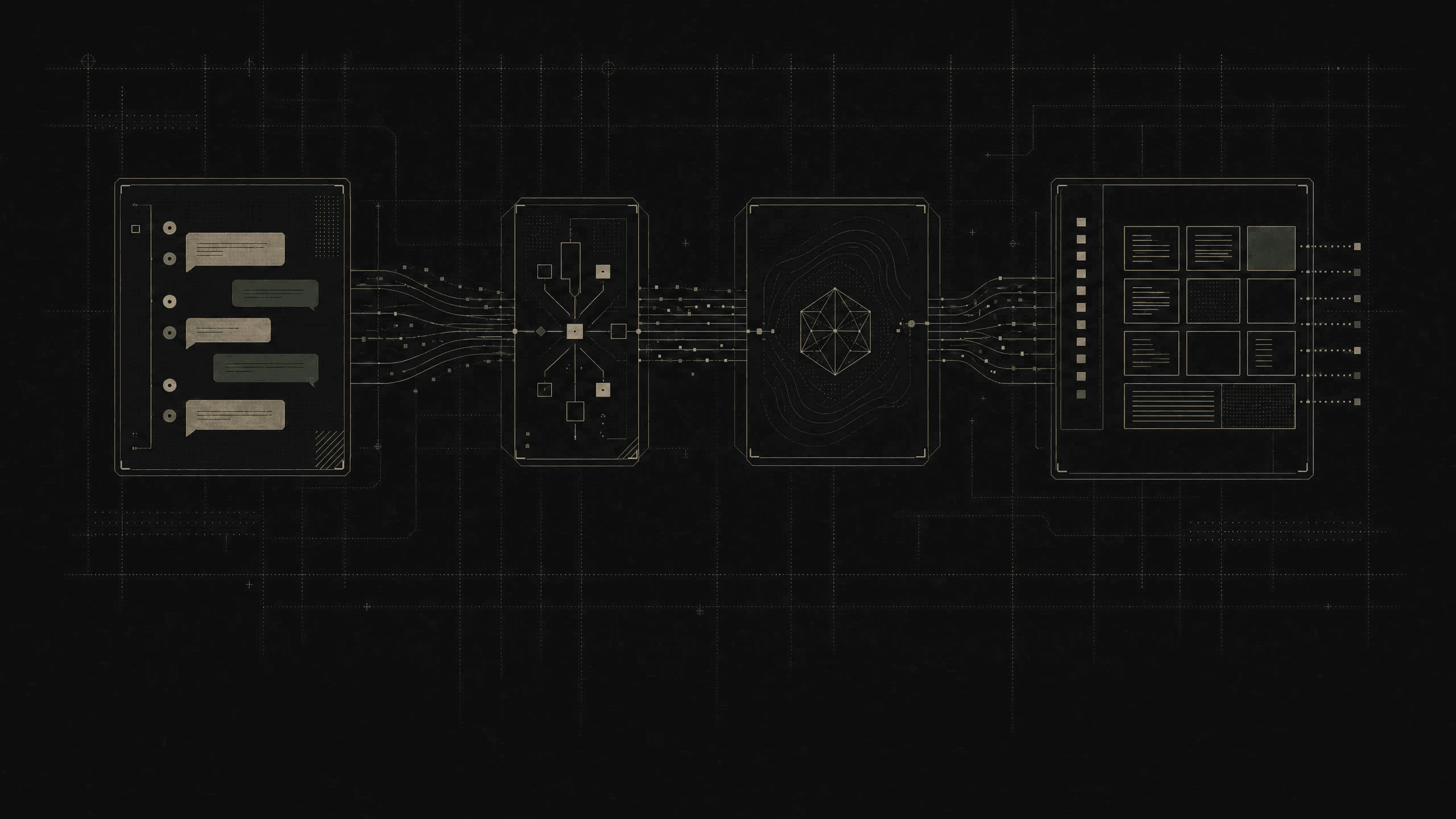
How we built a Slack + Notion pipeline assistant using Zapier SDK and Claude. An automated bot that reads your team's Slack activity, keeps your Notion content pipeline up to date, and posts morning and evening summaries, all without leaving your existing workflow.
- Zapier SDK (https://bit.ly/4hzpinh) + TypeScript
- ~400 lines of code
- Built July 2026
What we built and why
Our content team manages a pipeline of 70+ pieces of content in a Notion database. Statuses change throughout the day as content moves from drafting to review to posting. But the only way to know where things stood was to open Notion and scan the board manually.
We wanted two things:
- A morning message posted to our Slack channel at 8am: what's in review, what's scheduled to post today and the next two days, and whether we have any posting gaps.
- An evening message posted at 6pm: read what the team discussed in Slack that day, detect any content handoffs (e.g. an editor sending something for the lead to review), update the Notion statuses automatically, then post a recap.
The key insight: Notion is the source of truth. The bot never keeps its own tally. It reads Notion, acts on what it finds, and writes back. Slack is the communication layer. Claude is the intelligence layer that interprets conversations and writes messages in our team's voice.
The architecture
Slack <-> Zapier SDK <-> Claude <-> Notion
The bot is a single TypeScript file (src/bot.ts) that runs as a CLI. It takes one argument: morning or evening. The Zapier SDK handles all authentication to Slack and Notion (no API keys for those services in your code). Claude (via the Anthropic SDK) handles the intelligence: interpreting Slack messages and writing human-sounding summaries.
Morning flow:
- Read the Notion pipeline
- Claude writes an on-deck message
- Post to Slack
Evening flow:
- Read today's Slack messages
- Read the Notion pipeline
- Claude detects status changes
- Update Notion pages
- Re-read the pipeline
- Claude writes a recap
- Post to Slack
Step 1: Scaffold the project
Initialize with npm, set the project to ESM ("type": "module"), and install two runtime dependencies and four dev dependencies:
npm init -y
# Edit package.json: set "type": "module"

npm install @zapier/zapier-sdk @anthropic-ai/sdk
npm install -D @zapier/zapier-sdk-cli @types/node tsx typescript
Create a tsconfig.json targeting ES2022 with ESNext modules and Bundler resolution. This is the modern ESM TypeScript setup.
Step 2: Authenticate with Zapier
The Zapier SDK handles OAuth for both Slack and Notion. You log in once from your terminal:
npx zapier-sdk loginThis opens a browser for OAuth. After authorizing, you complete the handshake:
npx zapier-sdk login --callback-url "http://localhost:49505/oauth?code=..."Then verify your connections exist:
npx zapier-sdk list-connections --owner me
# Look for "slack" and "notion" in the output
Snag we hit: The login flow opens a browser tab and starts a local server to catch the OAuth callback. But the server times out quickly. If you don't complete the auth in time, the callback URL shows "This site can't be reached." The fix: copy the full URL from the browser's address bar and pass it to --callback-url manually.
Step 3: Connect to Slack and Notion in your code
The Zapier SDK gives you authenticated API access without managing tokens yourself:
import { createZapierSdk } from "@zapier/zapier-sdk";

const zapier = createZapierSdk();

// Find your connected accounts
const slack = await zapier.findFirstConnection({
  appKey: "slack", owner: "me", isExpired: false
});
const notion = await zapier.findFirstConnection({
  appKey: "notion", owner: "me", isExpired: false
});
For Slack messages, use the pre-built action. For Notion, use zapier.fetch() against the REST API directly (the pre-built Notion actions are unreliable):
// Post to Slack (pre-built action)
await zapier.apps.slack({ connectionId })
  .write.channel_message({ inputs: { channel, text } });

// Query Notion (raw fetch, Zapier injects auth)
const res = await zapier.fetch(
  \`https://api.notion.com/v1/databases/\${dbId}/query\`,
  {
    connection: notionConnectionId,
    method: "POST",
    headers: { "Notion-Version": "2022-06-28" },
    body: JSON.stringify({ page_size: 100 }),
  }
);
Step 4: Configure your environment
All configuration lives in a .env file. Here's what each variable does:
- SLACK_CHANNEL_ID: Your channel ID (starts with C). Find it in channel details.
- NOTION_DB_ID: The 32-char hex string from your database URL.
- ANTHROPIC_API_KEY: From console.anthropic.com.
- CLAUDE_MODEL: Optional. Defaults to claude-sonnet-5.
- NOTION_TITLE_PROP: Your title column name (e.g. "Content Name").
- NOTION_STATUS_PROP: Your status column name (e.g. "Status").
- NOTION_DEADLINE_PROP: Your date column name (e.g. "Posting Date").
- NOTION_STATUS_TYPE: status or select. Check the column type in Notion.
- USER_NAMES: JSON mapping Slack user IDs to first names.
Why property names are configurable: Every Notion database names its columns differently. Our title column is "Content Name" and our date column is "Posting Date." Yours might be "Title" and "Deadline." The bot reads these from env vars so it works with any database without code changes. The status type matters too: Notion's "Status" property and "Select" property use different JSON shapes in the API.
Step 5: Build the intelligence layer with Claude
Claude handles two jobs: detecting status changes from Slack conversations, and writing team messages.
Status detection is the most interesting part. We don't use rigid pattern matching. Instead, we describe team roles and conventions to Claude and let it use judgment:
You are an assistant that reads a team's Slack messages and detects content pipeline status changes.

Team members and their roles:
- Alex: editor and content writer
- Sam: reviewer and content lead
- Jordan: virtual assistant

Status conventions (apply only when the messages clearly indicate a handoff):
- When Alex sends content for Sam to review, status becomes "With Sam for review"
- When Sam finishes comments or sends content back to edit, status becomes "With editor"

Only flag a change when a message clearly indicates a handoff. Casual mentions should not trigger changes.
Claude returns a JSON array of {title, status} objects. The bot matches each title (case-insensitive) against the Notion pipeline and applies the update.
Message writing uses a separate prompt that sets the voice: warm, clear, sentence case, first person plural. We also specify emoji skin tone variants and Slack markdown formatting.
Step 6: Filter, don't dump
Our pipeline has 78 items. Sending all of them to Claude produced wall-of-text messages. The fix: a buildBriefing() function that filters down to only what matters:
- Items in review (With Editor, With [Reviewer] for review)
- Items scheduled in the next 2 days (any status, with their posting date)
- Posting gaps: days in the next 48 hours with no content in "Ready for Posting" or "Published" status
This means Claude gets a concise briefing of 5 to 10 items instead of 78, and the Slack messages stay short and actionable.
Snag we hit: Early versions counted "Draft" items as covering a posting day. But a draft isn't ready to go live, so the bot said "we're fully covered" when it shouldn't have. We fixed the gap check to only count "Ready for Posting" and "Published" items as real coverage. Design decisions like this matter: what counts as "covered" is a team judgment call, not a technical one.
Step 7: Handle timezones
The bot runs on your local machine, but your team might work in a different timezone. All date calculations use your team's timezone explicitly:
function teamToday(): string {
  return new Date().toLocaleDateString(
    "en-CA",
    { timeZone: "Europe/London" }
  );
}
Snag we hit: Without the timezone fix, the bot thought "today" was a day behind. This meant it flagged the wrong days as posting gaps and showed incorrect dates in messages. The "en-CA" locale gives us YYYY-MM-DD format, which matches Notion's date format.
Step 8: Schedule it
We used macOS launchd instead of cron. The difference: if your Mac is asleep at the scheduled time, launchd runs the job as soon as it wakes up. Cron just skips it.
Two .plist files in ~/Library/LaunchAgents/:
- com.your-bot.morning.plist fires at 8am, Mon through Fri
- com.your-bot.evening.plist fires at 6pm, Mon through Fri
Load them once and they persist across reboots:
launchctl load ~/Library/LaunchAgents/com.your-bot.morning.plist
launchctl load ~/Library/LaunchAgents/com.your-bot.evening.plist
Snag we hit: When launchd fires a missed job on wake, your network might not be ready yet. The bot fails silently because it can't reach Zapier or the Anthropic API. The fix: a small wrapper script that waits for network connectivity before running the bot. Ours pings the Anthropic API every 5 seconds (up to 2 minutes) before handing off to the actual bot process.
For a more reliable setup (or if you're on Linux/Windows), deploy to a cheap cloud server and use cron there.
Step 9: Give your bot a custom identity (optional)
By default, messages post under the Zapier integration's name and icon. If you want your bot to show up as its own character in Slack (custom name and avatar), switch from the Zapier Slack action to a Slack Incoming Webhook.
Set up the webhook:
- Go to api.slack.com/apps and create a new app (or use an existing one)
- Under Incoming Webhooks, toggle it on
- Click Add New Webhook to Workspace and select your channel
- Copy the webhook URL (starts with https://hooks.slack.com/services/...)
Add two new variables to your .env:
- SLACK_WEBHOOK_URL: The webhook URL from the step above.
- BOT_NAME: Display name in Slack (e.g. "Pipeline Bot"). Optional, defaults to your app name.
Update the posting function. Replace the Zapier Slack action with a direct fetch to the webhook. The webhook accepts username and icon_url fields to override the bot's appearance:
const BOT_NAME = process.env.BOT_NAME || "Pipeline Bot";
const WEBHOOK_URL = process.env.SLACK_WEBHOOK_URL;

async function postToSlack(text: string) {
  await fetch(WEBHOOK_URL, {
    method: "POST",
    headers: { "Content-Type": "application/json" },
    body: JSON.stringify({
      text,
      username: BOT_NAME,
      icon_url: "https://your-hosted-image.png",
    }),
  });
}
Why a webhook instead of the Zapier action: The Zapier Slack action posts as "Zapier" with Zapier's logo. You can't change the display name or avatar. A webhook lets you set username and icon_url (or icon_emoji) per message, so the bot shows up with its own identity in the channel. The tradeoff: you're managing one more credential (the webhook URL), but it's a single env var.
Snags and lessons
Notion integration sharing. The Notion API returned a 404 ("Could not find database") even though the database ID was correct. The fix: you have to explicitly share your Notion database with the Zapier integration. Open the database, click the three-dot menu, go to Connections, and add Zapier. This is easy to miss and the error message doesn't make it obvious.
Claude's tendency to editorialize. When given the full 78-item pipeline, Claude made sweeping statements like "we're fully covered through next week" based on its 2-day window. It didn't know (or care) that it was only looking at 2 days. The fix: filter the data before sending it to Claude, and remove "all clear" language from the briefing when there are no gaps. Only flag problems, not the absence of problems.
Claude JSON parsing. Claude sometimes wraps JSON responses in markdown code fences. The status detection function strips these before parsing, and wraps the entire parse in a try/catch that falls back to an empty array. Never trust LLM output to be perfectly formatted.
Resilience over correctness. Every async function in the bot wraps its body in try/catch and returns a safe default on failure. If Slack is down, the bot still reads Notion and posts what it can. If Claude fails to parse a status change, it skips the update and continues to the recap. One step failing should never crash the whole run.
Use judgment, not pattern matching. The status detection prompt describes team roles and conventions, then asks Claude to use judgment. Not every message from an editor is a handoff. Not every mention of a content title means its status changed. This works better than regex or keyword matching because team communication is messy and contextual.
The finished product
slack-to-notion-bot/
  .env
  .env.example
  .gitignore
  package.json
  tsconfig.json
  run.sh
  src/
    bot.ts
13 functions, one file, two run modes. The bot reads your Notion pipeline, uses Claude to understand your Slack conversations and write messages in your team's voice, and keeps everything in sync automatically.
Run commands:
npm run morning    # posts the on-deck message
npm run evening    # reads Slack, updates Notion, posts recap
To customize for your team
- Update the team roles and status conventions in the detectStatusChanges system prompt
- Change the Notion property names in your .env
- Adjust the buildBriefing() function if you want different filters (e.g. longer posting gap window, different active statuses)
- Change the timezone in the date helper and the launchd plists
- Tweak the Claude system prompts to match your team's voice
- Set SLACK_WEBHOOK_URL and BOT_NAME to give the bot its own identity in Slack
Prerequisites checklist
- Node.js 20+ installed
- A Zapier account (https://bit.ly/4hzpinh) with Slack and Notion connected
- An Anthropic API key (console.anthropic.com)
- Your Slack channel must grant channels:history and chat:write scopes to the Zapier connection
- Your Notion database must be shared with the Zapier integration (Connections menu in Notion)
- Slack member IDs for each team member (profile, then three dots, then Copy member ID)