Running My Life Like a Startup: The Inbox System That's Saving Me Hours a Week
Nyaradzo
August 2, 2026
Dream life, engineered.
I earn $60,000 a month running my life like a startup. That number gets people's attention, but here's the part that actually keeps it running: I don't spend more than a few minutes a day on menial tasks. No hour lost triaging my inbox. No afternoon derailed by a random subscription alert or a scam email that shouldn't have made it past the front door in the first place.
I'll be honest. I actually like getting email. It usually means a deal is moving forward. The problem was never email itself. It was that my whole day could get hijacked by noise that had nothing to do with the business: a "your subscription renews soon" notice, a phishing attempt, a newsletter I never asked for. When 80% of what hits your inbox is irrelevant, the 20% that matters gets buried, and buried deals cost money.
So I fixed it the same way I'd fix any bottleneck in a business. I brought in an operator to audit the system and rebuild it. The operator just happened to be AI.
I connected my Gmail to Claude Cowork, Anthropic's agentic AI built for exactly this kind of end-to-end task. You give it a goal, it works across your files and connected tools, and it runs the job to completion instead of needing you to micromanage every step.
Instead of asking it generic questions, I gave it a specific role: audit my inbox like a COO whose entire job is to find what's costing me money. Then I had it build and execute its own plan.
Here's exactly how I did it, so you can copy it in the next ten minutes.
The Tool: Claude Cowork
Claude Cowork is Anthropic's agentic AI that connects to your apps and runs multi-step tasks autonomously. It's the difference between chatting with an AI and handing it a job description. You give it a goal, connect it to Gmail, and let it work.
Step 1: Connect Gmail to Claude Cowork
- Open Claude Cowork and go to Settings > Connectors > Email.
- Connect your Gmail account and grant read/write access. It needs both to see your inbox and to actually build the system, not just describe it.
- Do this on desktop rather than mobile. Cowork uses browser and on-screen controls to click through Gmail's settings, and that works best on a full browser.
- Optional gut-check: star or note 5-10 emails you'd never want auto-filed (an active contract, a VIP client thread) so you can sanity-check the plan before anything runs.
Step 2: The Audit Prompt
This prompt gets you a plan. It does not touch your inbox yet. That's intentional. You want to review the plan before anything changes.
Connect to my Gmail and act as a COO whose entire job is to find what's costing me time.

Audit my last 3 months of email activity and give me a report covering:
1. The recurring senders/categories creating clutter (newsletters, subscriptions, automated alerts)
2. The categories that need high visibility (active deals/opportunities, payment or invoice threads, team communications)
3. A recommended label and folder structure based on what you find
4. The exact filter rules needed for each folder (sender addresses, subject line keywords, etc.)
5. What should be archived, what should be auto-filed out of the primary inbox, and what must stay
6. Which categories should be automatically marked as read so they stop triggering notifications

Present this as a prioritized action plan I can approve, not just a list of observations.
That sixth point matters more than it looks. Decluttering and reducing alert fatigue are two different jobs. A newsletter can stay in a folder for reference without ever needing to buzz your phone. Most people only solve for one of these. Solve for both.
Step 3: Review, Then Execute
Read the plan it hands back. Check that nothing important is slated to get buried. Once you're comfortable, hand it this:
Execute the full plan you just outlined. Specifically:
- Create every label/folder you recommended, using a pastel color palette so the inbox stays clean
- Set up each filter rule exactly as specified
- Apply the filters retroactively to existing emails already sitting in my inbox where applicable
- For the categories flagged as unnecessary-alert generators, set those filters to auto-mark as read
- Do not delete anything. Only label, file, archive, or mark as read

When finished, give me a summary: how many emails were reorganized, how many filters were created, and what's now auto-filing.
That "do not delete" line is non-negotiable. This system should reduce noise, not risk losing something you actually needed.
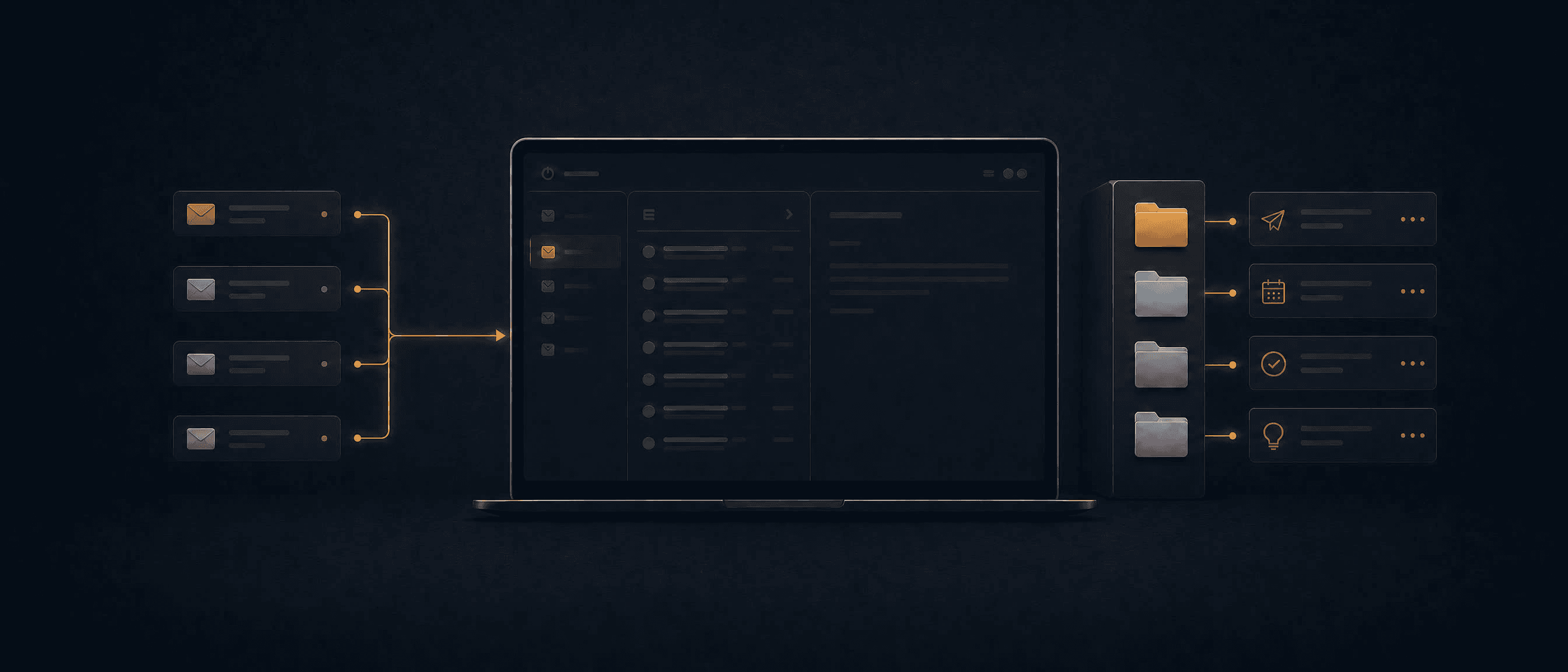
For me, this ran for about an hour and came back with color-coded folders for Active Deals, Deadlines, Payment Alerts, and Team Communications. Plus a set of filters quietly rerouting roughly half of what used to land in my primary inbox.
Step 4: Keep It Current
Inboxes drift. New senders, new tools, new categories of noise show up every week. Rather than re-running the full audit, I keep it maintained with this, which Cowork can also run on a schedule so it happens without you remembering to ask:
Re-scan my inbox for new senders or patterns from the last 7 days that aren't covered by existing filters. Suggest any new rules, then apply them with my approval.The Result
Fewer alerts, faster clarity. I get roughly 50% fewer notifications now, and instead of scanning a flat, noisy inbox every morning, I can glance at four folders and know instantly which part of the business actually needs me.
This is one system out of the ones actually running this business behind the $60K a month. Inbox today, something else next week. That's the whole premise of treating your life like a startup: audit the bottleneck, build the system, let it run without you.
If you want the next system as I build it, follow along. More of these are coming.