How to Build Your Own Promise Keeper Agent
Nyaradzo
November 18, 2026

You make promises all day. A line at the end of a meeting, a sentence at the bottom of an email, a quick Slack reply saying you will send something over. Each one is small, and together they decide whether people trust you to follow through.
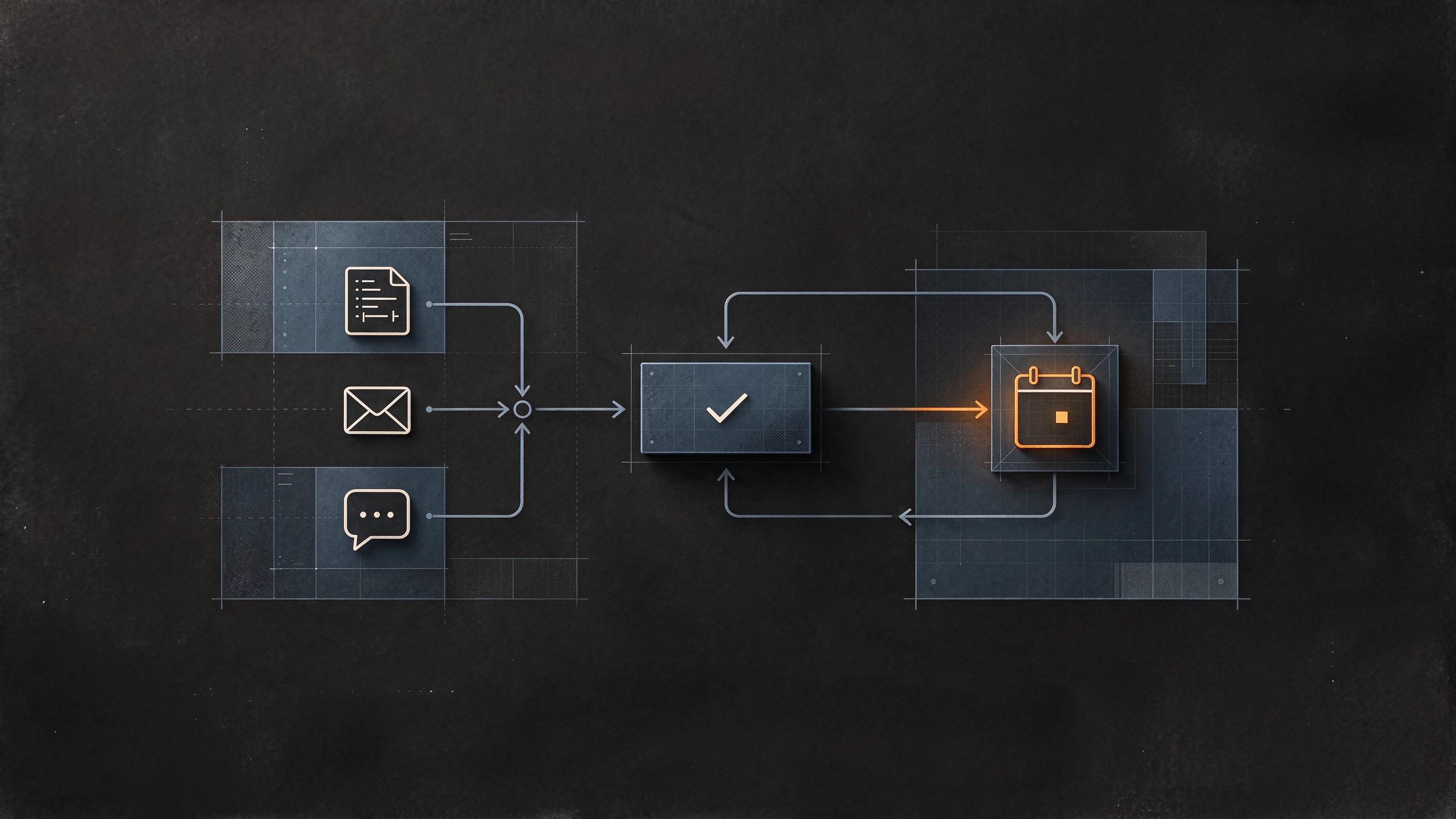
I built a promise keeper agent that reads my own meeting notes, sent email and chat messages, finds what I committed to, and emails me the list of what is still open. It also puts each open promise on my calendar at the date and time I gave.
This post gives you every instruction you need to build your own. You will define what counts as a promise, connect the apps you want it to read, write the reading rules, and schedule it to run every morning. Everything below works in Claude with connected apps and a scheduled task. If you want to jump straight to the build, copy the master prompt near the end.
What you need
You need three things, and a fourth if you want calendar reminders: a place to run the agent, a source for your promises, and a way to receive the list.
- A Claude account where you can connect apps and create scheduled tasks.
- At least one source: meeting notes, sent email or chat messages.
- One delivery route: an email to yourself or a chat message to yourself.
- Optional: a calendar, if you want open promises added as events.
- Meeting notes: Action items from your meetings. Apps that work: Granola, Fireflies, Otter, Fathom.
- Email: Commitments in sent mail, and delivering the daily list. Apps that work: Gmail, Outlook.
- Chat: Commitments to teammates and clients. Apps that work: Slack, Microsoft Teams.
- Calendar: Adding open promises as events (optional). Apps that work: Google Calendar, Outlook Calendar.
Start with the apps you already use every day. If you have no source and no delivery route connected yet, connect those before anything else.
Step 1: decide what counts as a promise
A promise is a firm commitment you made where the next move is yours alone and nothing is waiting on anyone else. Write this rule into your agent first, because every other step depends on it. Tell it to leave an item out when in doubt, since a missed borderline item costs less than a list padded with things you never owed anyone.
What counts
- "I'll send you the deck tomorrow."
- "Will call them Saturday to confirm."
- "You'll have the draft by Monday at 5."
- An action item from a meeting summary that names you as the owner.
- A confirmed RSVP for an event with a date, such as "Dinner Oct 21, 6 to 9pm."
- A proposal the other person accepted, such as "Tuesday at 2 works!" It becomes a promise from the moment they accept.
- "Let's sync Monday," said to your own team, where you own setting it up.
What does not count
- Proposals waiting on a reply: "Would love to grab coffee end of month, what's your availability?"
- Conditional offers: "If you like it, we can talk pricing." "Let me know if you need anything."
- Things other people owe you, deadlines you set for others, and requests you made of them.
- Notes to self and goals with no one on the other end, such as "learn Python."
- Pleasantries like "talk soon" or "will keep you posted" with nothing specific behind them.
- Commitments from before the window that were only mentioned again, unless you restated them with a new date.
Status
For each promise, the agent looks for proof it was already kept: a later sent message in the same thread that delivers it, a reply from the other person confirming receipt, or a later meeting note saying it happened. It labels each promise Done, Open or Unclear. Unclear means there is no proof either way. The agent treats Unclear like Open and says why in the email.
Due dates
The agent records what you actually said, then resolves it against the date you made the promise, in your time zone.
- A date and time, such as "Saturday at noon" or "by 5pm Monday": That exact date and time, plus the end time when one was stated.
- A day or date only, such as "Saturday" or "by the 15th": The date only.
- "Next week": The Monday of next week.
- "End of month": The last day of the month.
- Nothing: No due date.
The agent never invents a time you did not say.
Writing each item
Each promise becomes one line: the action in plain words, who it is for, when it is due, and a working link to the source. It quotes your own words only when the wording matters.
Step 2: connect your apps and choose what the agent may read
Connect only the apps you are willing to let the agent read, then confirm each one works before you build on it.
- In Claude, connect the apps for your categories: meeting notes, email, chat and calendar. If you cannot find a connector for an app you use, search the connector directory in Claude.
- Test every connection with one cheap read, such as listing one recent meeting, one sent message or one calendar event. An app whose test fails counts as broken, so leave it out.
- Keep a source that works but has nothing recent. It can still be useful later.
- Collect three details from your working apps: your email address, your chat account ID if chat is a source, and your time zone.
- Answer the four setup questions below and write your answers down.
- Which connected apps should the agent read for promises you made? Pick as many as you like.
- Should it add open promises to your calendar? Every open promise, only promises with a specific date, or no, just email me the list.
- Where should your daily list go? An email to your address, or a chat message to yourself.
- When should it arrive? A time in your time zone, such as 6:45am, 7:45am, 8:45am or 5:45pm after your workday.
Your four answers become the settings block in the master prompt. The agent reads only the sources you picked, even when other apps are connected.
Step 3: teach it how to read each source
The agent reads each approved source for the last 24 hours only, and it reads each kind of source differently. Tell it to load each connector's tools and follow that tool's own description for exact settings, since names differ between apps.
Meeting notes
- List the meetings in the window.
- Open each meeting's summary, action items, next steps and your own private notes.
- Keep only items assigned to you or said by you in first person. A summary line with someone else's name in brackets belongs to that person.
- Pull a transcript only to confirm the exact wording or date of a commitment the summary mentions. Never read transcripts to hunt for more items.
- Link to the meeting note's URL.
Sent email
- Search your sent mail in the window. In Gmail the search is in:sent newer_than:1d. In Outlook, filter Sent Items by date.
- Read the full thread whenever a preview is cut off. Previews often drop the newest messages, so never decide a promise is still open from a preview alone.
- Look for first-person commitments: "I'll...", "will send", "will follow up", and dates you offered.
- Check later messages in the same thread for proof the promise was kept, or for the other person accepting a proposal.
- Ignore automated mail you sent to yourself, such as briefings, reports, digests and earlier promise emails.
- Link to the thread's web link.
Chat
- Find your own account ID first, then search messages from you in the window, newest first. Page through every page of results.
- Read the surrounding thread when a message is a reply, so the agent can tell a commitment from a request.
- Count commitments to teammates the same as commitments to clients.
- Link to the message permalink.
When a source fails
If a source errors or has disconnected, the agent carries on with the others. It says in the email which source it skipped and that reconnecting it will restore it. It stops the whole run only when every source failed.
Step 4: add calendar reminders (optional)
Calendar reminders put each open promise on your own calendar as an event. Skip this step if you chose to get the list by email only.
The agent reads before it writes. It lists events from 3 days before today to 30 days ahead and searches for titles that start with "Promise:", so the same promise never lands twice, even if worded differently. It also skips a promise when an event someone else created already covers the same deadline, such as a "DUE:" reminder from a client or manager.
For each Open or Unclear promise that passes that check, it creates an event using these rules:
- A date and time: An event at that time in your time zone, ending at the stated end time, or 30 minutes later if none was stated.
- A date only: An all-day event on that date, shown as free so it does not block your schedule.
- No date: An all-day event on today's date, shown as free. Skip it if you chose "only promises with a specific date."
Title each event "Promise: " followed by a short action in sentence case. The description holds what you promised, who it was for, when you promised it, the source link, and the line "Added by Promise Keeper." The agent never invites anyone to these events and never sends invitations.
Step 5: design the daily list
The agent sends one email each morning with open promises first and everything else below them. Build it in this order:
- Open promises first, most urgent first. Each one shows the action, who it is for, when it is due and the source link.
- Promises from the window that are already kept, one line each.
- One line on calendar events added and any skipped as already on your calendar. Leave this out if the calendar is off.
- Any source that was skipped because it failed or disconnected.
The agent leaves out proposals, things others owe you and any "waiting on others" section. With nothing found, it says so in one line.
Subject line
Use this pattern in your prompt: Promise Keeper: <weekday, Mon D>: <N> open. A finished subject reads like "Promise Keeper: Wed, Nov 18: 3 open."
Email layout
Tell the agent to send the email as HTML with one card per open promise.
- Header: the date and "last 24 hours," then "You have N open promises."
- Each card: the action in plain words as the title, a status pill, the due date or event time (or "No due date"), who it is for, one short sentence of context at most, and a link.
- Link text stays short: "Open meeting note," "Open email thread," "Open Slack message." The email never shows a raw web address.
- Use each link exactly as the source returned it, never a google.com redirect or a tracking wrapper.
- Add one plain-text line for the text version of the email, such as "You have 4 open promises today."
- Footer: "Sent by Promise Keeper."
Status pill
- Open: text #b42318 on background #fef3f2.
- Unclear: text #b54708 on background #fffaeb.
- Done: text #067647 on background #ecfdf3.
If you chose a chat message, the list keeps the same structure and uses the chat app's own link format. In Slack, a link reads <url|Open meeting note>.
Step 6: set the guardrails
Your agent reads your apps, adds events to your own calendar if you turned that on, and messages you. Write these limits into the prompt so they hold on every run.
- Never send, post or reply to anyone except you.
- Only read the sources you approved, even if other apps are connected.
- Only add events to your own calendar, and only if you turned the calendar on.
- Never invite anyone to a calendar event or send an invitation.
- If every source fails, still send you a short message saying the run did not complete and which app to reconnect.
Step 7: schedule the daily run
Create one scheduled task named Promise Keeper that runs every day at the time you chose, in your time zone. Each run starts in a fresh session with no memory of the conversation where you built it, so the task's prompt has to carry everything: your settings, the steps, the rules, the email layout and the limits.
- Check your scheduled tasks first. If one named Promise Keeper exists, update it so you never end up with two.
- Create a recurring scheduled task that keeps running after your current session ends. A reminder that only lasts for one session will stop working.
- Paste in the master prompt from the next section with your settings filled in.
- Set the schedule to daily at your chosen time, with your time zone written into it.
- Turn on push notifications for the task if Claude offers them, so you know when the list is ready.
- Check the approval setting the task reports. If its runs will stop to ask for approval, you can switch the task to automatic approval in its settings, if your organization allows it.
The prompt starts by telling the agent to work unattended: make sensible calls and note them in the message.
Step 8: test it and keep it tuned
Run the agent once on demand before you trust the schedule. Ask Claude "What did I promise this week?" and read the list it returns. Check each item against your own memory of what you committed to.
To test the scheduled version, fire the task once with no extra text. Anything you add becomes a second message in that run, and the run then repeats its work and sends you a second email.
Tune it
- If a proposal waiting on a reply shows up as a promise, tighten your "does not count" list and add that exact kind of sentence as an example.
- If a promise you made gets missed, check that its source is in your approved list and that the connection still works.
- To add or remove an app, turn the calendar on or off, or change the time, update the settings block in the task's prompt.
- To pause the daily list, disable the scheduled task. Enable it again when you want it back.
The master prompt
Copy this into your scheduled task and fill in the brackets. Delete the source rules for any app you do not use. If you chose no calendar, delete step 4 and the calendar rules too, and keep a copy of your filled-in prompt so you can change a setting later.
You are running [YOUR NAME]'s daily Promise Keeper. Their time zone is [TIME ZONE]. Work unattended: make sensible calls without asking questions, and note them in the message.

SETTINGS
Sources to read (only these, even if other apps are connected): [for example: Granola meeting notes, Gmail sent mail, Slack messages I sent]
My email address: [EMAIL]
My chat account ID (if chat is a source): [CHAT ID]
Calendar choice: [Yes, add every open promise / Only promises with a specific date / No, just email me the list]
Deliver the list to: [email to my address / a chat message to myself]

STEPS
1. Window. Get the current time. The window is the 24 hours before now.
2. Gather. Read each approved source for the window using the source rules below. Collect each candidate commitment with my exact wording, who it was made to, when it was made, any due date, and the source link.
3. Filter and check. Apply the promise rules to every candidate. Mark each remaining promise Done, Open or Unclear, and resolve its due date.
4. Calendar (delete this step if I chose No). Add each Open or Unclear promise to my calendar using the calendar rules below.
5. Report. Send the list to my delivery destination: open promises first, most urgent first; then promises already kept, one line each; then one line on calendar events added or skipped; then any source skipped because it failed. Never include proposals, things others owe me, or a waiting-on-others section. If nothing is found, say so in one line.

PROMISE RULES
A promise is a firm commitment I made where the next move is mine alone and nothing is waiting on anyone else. When in doubt, leave it out.
Counts: first-person commitments ("I'll send the deck tomorrow"); action items a meeting summary assigns to me by name; a confirmed RSVP for a dated event; a proposal the other person accepted (it becomes a promise when accepted).
Does not count: proposals waiting on a reply; conditional offers ("if you like it, we can talk pricing"); things others owe me and requests I made of them; notes to self and goals; pleasantries like "talk soon"; commitments from before the window that were only mentioned again, unless I restated them with a new date.
Status: look for proof a promise was kept (a later sent message that delivers it, the other person confirming receipt, or a later meeting note saying it happened). Label each Done, Open or Unclear. Treat Unclear like Open and say why.
Due dates: record what I said and resolve it against the date I made the promise, in my time zone. Date and time stated: exact date and time (keep an end time if stated). Day or date only: the date. "Next week" is the Monday of next week. "End of month" is the last day of the month. Nothing stated: no due date. Never invent a time I did not say.
Each item is one line: the action in plain words, who it is for, when it is due, and a working source link.

SOURCE RULES (keep only the sections for sources I approved)
Meeting notes: list meetings in the window. Open each summary, action items, next steps and my private notes. Keep only items assigned to me or said by me in first person. Read a transcript only to confirm the wording or date of a commitment the summary mentions. Link: the meeting note URL.
Sent email: search my sent mail in the window (Gmail: in:sent newer_than:1d; Outlook: Sent Items filtered by date). Read the full thread when a preview is cut off, because previews often drop the newest messages. Look for first-person commitments, then check later messages in the thread for proof they were kept or for the other person accepting a proposal. Ignore automated mail I sent to myself, including earlier Promise Keeper emails. Link: the thread's web link.
Chat: find my own account ID, then search messages from me in the window, newest first, across every page of results. Read the surrounding thread when a message is a reply. Commitments to teammates count the same as commitments to clients. Link: the message permalink.
If a source fails: carry on with the others and say in the message which source was skipped and that reconnecting it will restore it. Stop only if every source failed.

CALENDAR RULES (delete this section if I chose No)
Before writing, list events from 3 days before today to 30 days ahead and search for titles starting with "Promise:". Skip a promise that is already there, even if worded differently, and skip one that an event someone else created already covers.
Date and time stated: an event at that time in my time zone, ending at the stated end time or 30 minutes later.
Date only: an all-day event on that date, shown as free.
No date: an all-day event on today's date, shown as free (skip it if I chose Only promises with a specific date).
Title: "Promise: " plus a short action in sentence case. Description: what I promised, who it was for, when I promised it, the source link, and "Added by Promise Keeper." Never invite anyone.

EMAIL LAYOUT (for email delivery)
Subject: "Promise Keeper: <weekday, Mon D>: <N> open". Send HTML in exactly this layout: a header with the date and "last 24 hours", then "You have N open promises". One card per open promise with the action as the title, a status pill (Open: text #b42318 on #fef3f2; Unclear: text #b54708 on #fffaeb; Done: text #067647 on #ecfdf3), the due date or "No due date", who it is for, one short sentence of context at most, and a short link ("Open meeting note", "Open email thread", "Open Slack message"). Never show a raw web address. Use each link exactly as the source returned it, never a google.com redirect or a tracking wrapper. Then an "Already kept" section, a "Calendar" line, and a line about any skipped source. Footer: "Sent by Promise Keeper." Put a one-line plain-text summary in the plain-text body, such as "You have 4 open promises today."

LIMITS
Never send, post or reply to anyone except me. Only read my approved sources, add events to my own calendar (if enabled), and message me. Never invite anyone to calendar events. If every source fails, still send me a short message saying the run did not complete and which app to reconnect.
Where to get the ready-made version
If you would rather skip the build, I turned all of this into a Promise Keeper plugin. Say "set up promise keeper" and it checks which of your apps are connected, asks which ones you are willing to let it read, asks the four settings questions, runs a first check right away and schedules the daily list.
After setup, "What did I promise this week?" runs a check on demand, "Change my promise keeper settings" updates your apps, calendar choice or time, and "Pause promise keeper" stops the daily list. I share the plugin as a lesson inside my Skool community, Disgustingly Paid.
I run my own version every day. If you build yours, start with one source and one delivery route, then add the rest after your first week of emails.
Join Disgustingly Paid on Skool