Promise Keeper for Copilot: Build Guide
Nyaradzo
November 23, 2026
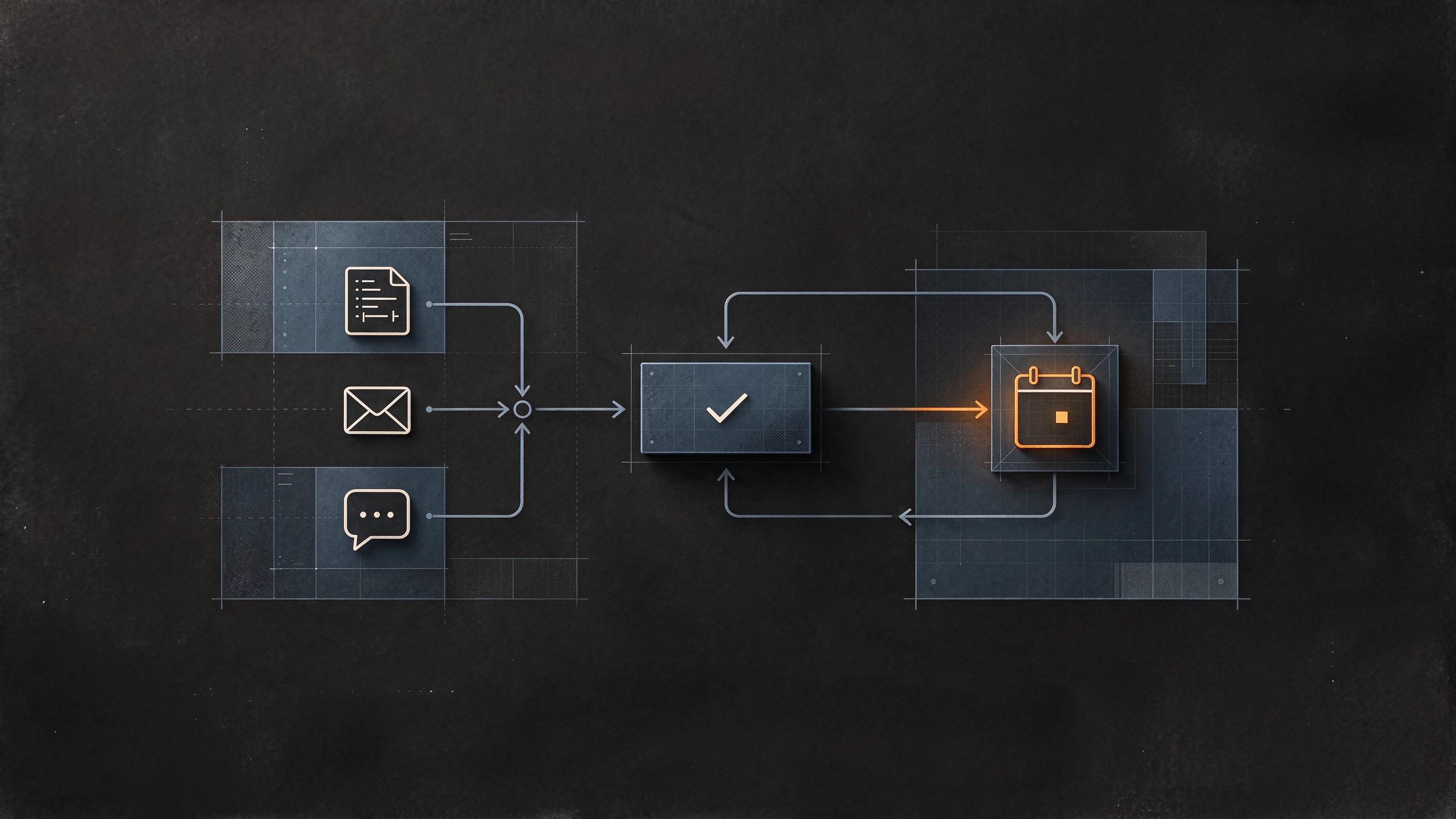
Promise Keeper checks your last 24 hours of meetings, sent email and chat every morning, then emails you the promises you made that are still open. I first built it in Claude. This is the same agent rebuilt natively in Copilot, for anyone whose meetings, mail and chat already run through Microsoft 365.
The Copilot version keeps every rule from the Claude version:
- It counts only firm promises you made, where the next move is yours alone ("I'll send the deck tomorrow", "will call Saturday").
- It leaves out proposals waiting on a reply, offers with an "if", things other people owe you, notes to self and pleasantries.
- It marks each promise Done, Open or Unclear by looking for proof in later messages that you kept it.
- It resolves due dates against the day you made the promise and never invents a time you didn't say.
- It can add each open promise to your calendar as an event titled "Promise: ...".
- It never emails, messages or invites anyone except you.
This guide covers two ways to build it: a quick build inside Copilot, and a full build in Copilot Studio that adds the HTML email and calendar events.
What you need
You need a Microsoft 365 work or school account with Teams and Outlook, plus a Copilot licence for the meeting notes and action items.
- Microsoft 365 work or school account with Teams and Exchange Online (both builds): source of your meetings, sent mail and chats. Personal Microsoft accounts are not supported by the Graph transcript API.
- Copilot licence (both builds): check your region and plan for availability. Scheduled tasks, email and Teams knowledge in Agent Builder, and the Teams connector's AI insight actions all require it.
- Copilot Studio (full build): internal agents are included with your Copilot licence. Recurrence triggers run on Copilot Credits, so you also need a credits allocation through your tenant.
- Power Automate (full build): hosts the flow that reads Outlook and Teams for the agent.
- Teams admin access at the Teams admin center (both builds): turns on transcription and confirms Graph access to transcripts. If you are the only admin, you do this yourself; otherwise send Step 1 to your IT admin.
Pick the quick build if a daily list inside Copilot is enough. Pick the full build if you want the HTML email in Outlook, an optional Teams message and calendar events, as in the Claude version.
How the pieces map
Every part of the Claude version has a Copilot equivalent.
- Meeting notes → Teams AI meeting notes and action items, with the transcript for exact wording. Lives in the Teams connector: List AI insights, Get AI insight, List meeting transcripts, Get meeting transcript content.
- Sent email → Outlook Sent Items. Lives in the Office 365 Outlook connector: Get emails (V3).
- Chat → Teams chats. Lives in the Teams connector: List chats, Get messages in a chat.
- Calendar events → Outlook calendar. Lives in the Office 365 Outlook connector: Get calendar view of events (V3), Create event (V4).
- Promise rules (the skills) → Agent instructions. Lives in the Copilot Studio agent's Instructions, or the prompt inside a scheduled task.
- Daily task → Recurrence trigger or scheduled task. Lives in Copilot Studio event triggers and scheduled tasks in Copilot.
- Daily email → Outlook email to yourself. Lives in the Office 365 Outlook connector: Send an email (V2).
- Chat delivery → Teams message to yourself. Lives in the Teams connector: Post message in a chat or channel.
- Setup questions → Placeholders in the instructions: your name, time zone, email address and which sources to read.
Step 1: turn on Teams transcripts
Promise Keeper can only read meetings that have a transcript, so switch transcription on before anything else. Without a transcript, Copilot has no post-meeting recap and nothing for Promise Keeper to read.
- Open the Teams admin center, go to Meetings > Meeting policies, open your policy and set Transcription to On under Recording & transcription. It is on by default in new policies.
- Allow the automatic option. Run `Set-CsTeamsMeetingPolicy -Identity <policy name> -AutoRecording Enabled` in PowerShell, as described in Microsoft's auto recording guide. That adds "Record and transcribe automatically" to Meeting options, and it stays off by default for each meeting. No admin policy turns it on for every meeting.
- In Teams Calendar, open each meeting you organize, select Meeting options and turn on Record and transcribe automatically under Recording & transcription. For a meeting you start on the spot, choose More > Record and transcribe > Start transcription.
- Ask your admin to confirm Graph API access to transcripts is allowed. When it is disabled, transcript requests fail with a 403 error and the code `GraphAccessToTranscriptsDisabled`, per the Graph transcripts reference.
- Check it worked: open a finished meeting from Teams Calendar, select the Recap tab and confirm the notes and transcript appear.
Two gaps to expect. Copilot does not work in meetings hosted outside your organization, and the Meeting AI Insights API covers private scheduled meetings only. Promise Keeper will miss external and channel meetings.
Step 2: write the Promise Keeper instructions
The instructions carry the promise rules from the Claude version. Paste them into a Copilot prompt for the quick build, or into the agent's Instructions box for the full build, after replacing the placeholders in angle brackets.
You are Promise Keeper, a daily assistant for <YOUR NAME>. Your time zone is
<YOUR TIME ZONE>. Find the promises <YOUR NAME> made in the 24 hours before
now and list the ones still open. Work unattended: do not ask questions. Make
sensible calls and note them in the result.

SOURCES (read only these)
1. Teams meetings: the AI meeting notes and action items for meetings in the
window. Keep only items assigned to <YOUR NAME> or said by <YOUR NAME> in
first person. A line with someone else's name belongs to that person. Use a
transcript only to confirm the exact wording or date of a commitment.
2. Outlook sent mail: messages <YOUR NAME> sent in the window. Read the whole
thread before deciding a promise is open. Ignore automated mail sent to <YOUR
NAME>, including earlier Promise Keeper emails.
3. Teams chats: messages <YOUR NAME> sent in the window. Read the surrounding
thread to tell a commitment from a request. Commitments to teammates count
the same as commitments to clients.

WHAT COUNTS AS A PROMISE
A promise is a firm commitment <YOUR NAME> made where the next move is theirs
alone and nothing is waiting on anyone else.
Counts:
- "I'll send you the deck tomorrow."
- "Will call them Saturday to confirm."
- "You'll have the draft by Monday at 5."
- An action item a meeting summary assigns to <YOUR NAME> by name.
- Confirmed attendance at a dated event ("I've signed up, see you there").
- A proposal the other person has since accepted ("Tuesday at 2 works!"),
from the moment it was accepted.
Does not count, so leave it out completely:
- Proposals waiting on a reply ("what's your availability?", "I'm free Monday
or Tuesday, let me know").
- Conditional offers ("if you like it, we can talk pricing", "let me know if
you need anything").
- Things other people owe <YOUR NAME>, deadlines <YOUR NAME> set for others,
and requests <YOUR NAME> made.
- Notes to self and goals with no one on the other end.
- Pleasantries ("talk soon", "will keep you posted") with nothing specific
behind them.
- Commitments made before the window that were only mentioned again inside
it, unless restated with a new date.
When in doubt, leave it out.

STATUS
Look for proof each promise was kept: a later sent message in the same thread
that delivers it, a reply confirming receipt, or a later meeting note saying
it happened. Label each promise Done, Open or Unclear. Unclear means no proof
either way; treat it like Open and say why.

DUE DATES
Record what was actually said, then resolve it against the day the promise
was made, in <YOUR TIME ZONE>.
- Date and time stated: the exact date and time. Keep an end time when one
was stated.
- Day or date only: the date only. "Next week" means the Monday of next week.
"End of month" means the last day of the month.
- Nothing stated: no due date.
Never invent a time that was not said.

OUTPUT
Open promises first, most urgent first. For each one give the action in plain
words, who it is for, when it is due and a link to the source, with short
link text such as "Open meeting recap", "Open email thread" or "Open Teams
message". Use each link exactly as the source returned it. Then list promises
from the window that are already Done, one line each. Then name any source
that failed. Never list proposals, things others owe <YOUR NAME>, or a
"waiting on others" section. If nothing is found, say so in one line.

LIMITS
Never send, post or reply to anyone except <YOUR NAME>. Never invite anyone
to anything.
Step 3A: quick build with a scheduled task
The quick build runs your Step 2 prompt every workday morning in Copilot and leaves the list in your Copilot chats.
- Open the Microsoft Copilot app (formerly Microsoft 365 Copilot) on the web or desktop and sign in with your work account, as Microsoft's app page describes.
- Paste the Step 2 instructions into a new chat, add "Use the 24 hours before now" at the top and send it. Compare the list with what you actually promised, and adjust the wording until it matches.
- Hover over your prompt and select Schedule this, or create a task from Task Hub. Choose daily on workdays at a time such as 7:45am. Microsoft's page calls these scheduled tasks and lists daily on workdays among its examples.
- Select the Task icon in the Copilot sidebar, open the Scheduled tab and choose Run now to test it. The same tab lets you edit the schedule, pause the task or delete it.
- Read each result in the Chats section on the left, where scheduled tasks appear in bold with an icon.
What the quick build leaves out:
- No email and no calendar events. Microsoft's page documents results appearing in your chats only. The Outlook email, Teams message and calendar events come with the full build.
- Web and desktop only. The same page says Teams and Outlook are not part of the initial release of scheduled tasks.
- Admin dependency. Scheduled prompts depend on the "Allow the use of additional optional connected experiences in Office" cloud policy setting being on.
- Possible provisioning gaps. One community thread reports every scheduled prompt failing with "couldn't be completed" while the same prompt worked in chat.
To ask "what did I promise this week?" on demand, turn the prompt into an agent. In Copilot choose New agent, paste the instructions and add My emails and My Teams chats and meetings under Knowledge. Agent Builder cannot scope email to Sent Items; only the Agents Toolkit manifest can. Scheduling inside Agent Builder is rolling out from mid-November to mid-December 2026, runs only for the person who created it, and the announcement does not say whether results can be emailed.
Step 3B: full build, create the agent
The full build is an autonomous Copilot Studio agent that wakes on a schedule, reads Outlook and Teams through one flow, emails you the list and adds calendar events.
- Open Copilot Studio, create a new agent and name it Promise Keeper.
- Paste the Step 2 instructions into Instructions, then add the block below under them.
- In Settings, turn on generative orchestration. Event triggers only work on agents that have it.
- Under Tools, add these Office 365 Outlook actions: Send an email (V2), Get calendar view of events (V3) and Create event (V4).
- Sign every tool in with your own account. Triggers can only use the maker's credentials, so a tool set to ask the user for sign-in stalls mid-run.
- Leave the agent unpublished until Step 4 is done.
DELIVERY
Get the source text by calling the "Gather last 24 hours" flow. Then send
<YOUR EMAIL> one email with the Send an email (V2) tool. Subject: "Promise
Keeper: <weekday, Mon D>: <N> open". Send the body as HTML with one card per
open promise, short link text only ("Open meeting recap", "Open email
thread", "Open Teams message") and never a raw web address. Start with one
plain sentence such as "You have 4 open promises today." Never send to anyone
else.

CALENDAR
For each Open or Unclear promise, first call Get calendar view of events (V3)
from 3 days ago to 30 days ahead. Skip the promise if an event titled
"Promise: ..." already covers it, or if an event someone else created already
covers the same deadline. Otherwise call Create event (V4):
- Subject: "Promise: <short action>" in sentence case.
- Date and time stated: a timed event in <YOUR TIME ZONE>, ending at the
stated end time, or 30 minutes later if none was stated.
- Date only: an all-day event on that date, shown as free.
- No date: an all-day event on today's date, shown as free.
- Body: what was promised, to whom, when it was promised, the source link and
"Added by Promise Keeper."
- Leave Required attendees and Optional attendees empty. Never invite anyone.

IF A SOURCE FAILS
Carry on with the other sources and say in the email which source was
skipped. If every source fails, send a short email saying the run did not
complete.
For the card layout from the Claude version, paste your `email-template.html` from the Promise Keeper plugin under DELIVERY and tell the agent to follow it. Send yourself one test email and check how Outlook renders it.
Step 4: build the gather flow and schedule the agent
One flow reads all three sources and hands the agent plain text. Microsoft's trigger guidance says to keep a sequence under 15 actions or topics and to use a Power Automate flow when a connector action keeps failing, so put the loops inside one flow.
In the agent, choose Tools > Add a tool > New agent flow, name it "Gather last 24 hours" and add these actions in order. Open each action's inputs in the designer to confirm the exact field names, since the connector pages do not list every parameter. Menu names also shift between Copilot Studio releases, so follow the labels you see.
- Sent mail. Office 365 Outlook > Get emails (V3). Folder: Sent Items. Top: 50. Add a Filter array that keeps messages from the last 24 hours with `@greater(ticks(item()?['dateTimeReceived']), ticks(addDays(utcNow(), -1)))`. The connector's built-in filters apply only to the first 250 emails in a folder, so keep the window short.
- Meetings. Office 365 Outlook > Get calendar view of events (V3). Start: one day before now. End: now. Keep only events that carry a Teams join link.
- Meeting notes. Teams > Get an online meeting, then List AI insights, then Get AI insight. Pass the event's join link to Get an online meeting, then its meeting ID to the two insight actions. Get AI insight returns meeting notes, action items with an owner name, and a recap link. Keep all three.
- Chats. Teams > List chats, then Get messages in a chat. Keep messages you sent in the last 24 hours. The Teams connector allows 100 API calls per 60 seconds per connection, so cap the loop at 20 chats. Skip this step at first if you only care about meetings and email.
- Return. Last action of the agent flow. Return three text values to the agent: `sent_mail`, `meeting_notes` and `chats`. Include each item's source link with its text.
Transcripts stay out of the flow at first, because the AI notes and action items already hold what you committed to. If the agent keeps marking promises Unclear, add Teams > List meeting transcripts and Get meeting transcript content for those meetings.
Then schedule the agent:
- On the agent's Overview page, select Add trigger > Recurrence.
- Set Interval to 1 and Frequency to Day, choose your time zone and pick a time such as 7:45am. Use Week and select weekdays if you do not want weekend runs.
- In the trigger's message, enter "Run Promise Keeper for the last 24 hours."
- Test the trigger before you publish. Microsoft warns that after publishing, the agent reacts every time the trigger fires.
- Publish the agent.
- Watch the Activity page for the first few runs. Each trigger payload bills like a user message in Copilot Credits, and the flow's actions consume credits at the standard rate.
To get the list in Teams as well, add Teams > Post message in a chat or channel as a tool and post to a chat with yourself. The Flow bot option needs the Workflows app set to allow in the Teams admin center.
Test it and fix common problems
Test with two lines of your own. In a Teams chat with yourself or a teammate, write "I'll send the pricing deck by Friday at 3pm." Then write "Would love to grab coffee end of month, what's your availability?" The first line should appear in the list with a Friday 3pm due time. The second should stay out, because it is a proposal waiting on a reply.
Run the agent from the test pane with "Run Promise Keeper for the last 24 hours" (full build) or choose Run now (quick build). Then confirm the email arrives and an all-day or timed event titled "Promise: ..." appears on your calendar.
- A meeting is missing → no transcript, a meeting hosted outside your organization, or a channel meeting. Fix: start transcription (Step 1). AI insights cover private scheduled meetings only, and Copilot does not work in externally hosted meetings.
- Transcript calls return 403 `GraphAccessToTranscriptsDisabled` → your tenant blocks Graph access to transcripts. Fix: ask your Teams admin to allow it.
- Scheduled task says "couldn't be completed" → scheduled prompts not provisioned, or optional connected experiences are off. Fix: try Run now, check the cloud policy setting from Step 3A and see the linked community thread.
- Trigger fires but no email arrives → agent unpublished, generative orchestration off, or no credits. Fix: check the Activity page and your credit balance. Agent flows are blocked when the environment has no Copilot Credits.
- Agent asks for a sign-in mid-run → a tool connection uses user authentication. Fix: switch each tool to your own credentials, as in Step 3B.
- Duplicate calendar events → the duplicate check is missing or the Get calendar view tool is not added. Fix: confirm the CALENDAR block is in the instructions and that tool is added.
- Proposals show up as promises → the rules are not strict enough for your wording. Fix: paste the offending sentence into the "Does not count" list.
- The run is slow or cuts off → too many meetings or chats in one day. Fix: cap the chat loop and leave transcripts out.
One open question. Microsoft's docs say the AI insights call needs a Copilot licence and access to the meeting's transcript, but the transcript pages do not say whether an attendee can pull the raw transcript of a meeting someone else organized. Test one meeting you organized and one you only attended.
Change it later and keep it private
- Move the time → quick build: Task icon > Scheduled tab > Edit schedule. Full build: edit the Recurrence trigger from the agent's Overview page.
- Pause it → quick build: Pause moves the task to Inactive. Full build: remove the trigger from Overview, or unpublish the agent.
- Add or drop a source → quick build: edit the SOURCES lines in the prompt. Full build: edit the SOURCES lines and add or remove that step in the flow.
- Turn calendar events off → quick build: not applicable. Full build: delete the Create event (V4) tool and the CALENDAR block.
Keep the full-build agent to yourself. Event triggers run on the maker's credentials, and Microsoft warns that users of a published agent may reach data or trigger actions through those credentials. Do not share the agent with anyone, and keep the instruction "Never send to anyone else" in place.
Sources
Checked November 23, 2026. Rollout dates change, so confirm them on the pages below.
- Schedule your most used Copilot prompts (scheduled tasks)
- Scheduled prompts admin controls
- Event triggers in Copilot Studio
- Knowledge sources in Agent Builder
- MC1302906: scheduled workflows in Agent Builder
- Microsoft Teams connector reference
- Office 365 Outlook connector reference
- Graph: list meeting transcripts
- Get meeting transcripts and recordings with Graph APIs
- Meeting AI Insights API
- Use Copilot in Microsoft Teams meetings
- Manage Teams meeting recording options
- Manage Teams auto recording